Accidental Photo Loss: How Instant Undo Protects You
A fast swipe shouldn't mean permanent regret. Explore PhotoWipy's multi-layered fail-safe system featuring instant tap-to-undo and system trash integration.

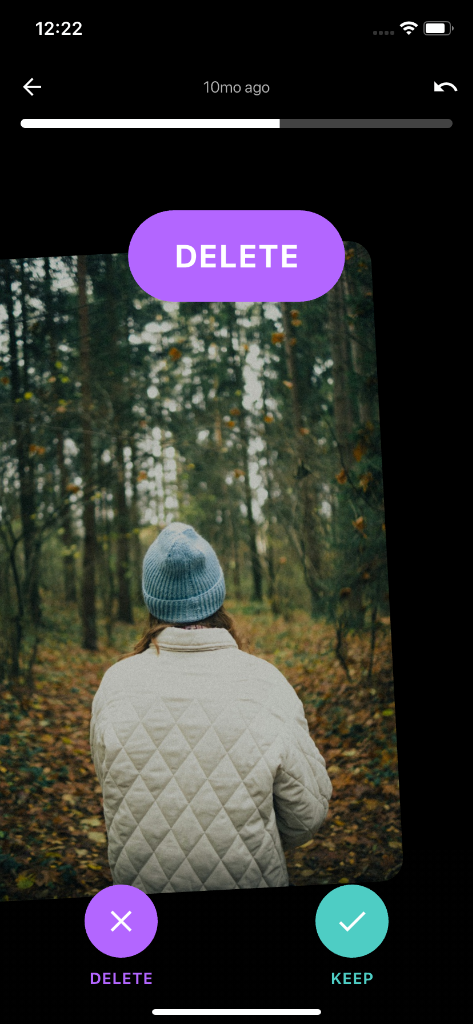
The Speed vs. Safety Dilemma
When an app enables high-velocity swiping, users worry: 'What if my finger twitches left on my favorite photo?' Speed without safeguards leads to hesitation and anxiety.
Step 2: The Staging Bin Confirmation
Swiping left does not delete files immediately from your disk. It places them into an isolated staging review bin. At the end of the month session, you are shown a comprehensive overview of every single flagged item before any deletion is requested.
Step 3: The 30-Day Operating System Grace Period
Even after confirmation, your operating system (iOS or Android) moves files to the 'Recently Deleted' system album where they remain protected for 30 full days before final purge. You have triple-layer redundancy.
Safe On-Device Cleaning Guarantee
PhotoWipy works completely offline. Your photos never leave your iPhone or Android device, and all flagged deletions are held in your 30-day OS Recently Deleted buffer.
Related Storage & Decluttering Guides
Are Photo Cleaners Safe? Why On-Device Processing Wins
Your camera roll holds personal intimate photos, financial documents, and home locations. Learn why granting cloud permissions to unknown apps is a massive risk.
Camera Roll Minimalism: Keep The 10% That Matters
When everything is captured, nothing is special. Explore how adopting a museum curator mindset transforms a chaotic 40,000 photo dump into a treasured heirloom.
Organize Photos by Month & Year Without Endless Folders
Creating manual folders for every vacation and event is a chore nobody maintains. Here is how a month-by-month gestural review keeps you organized automatically.